
 Register Domain
 Transfer Domain
 cPanel Hosting
 Wordpress Hosting
 Nord VPN
 Support
 Help Center
 Open Ticket
 Contact Us
What it is and why it matters
Two-factor authentication adds a second step to logging in: your password, plus a six-digit code that changes every thirty seconds and lives on your phone. Someone who steals or guesses your password still cannot get in, because they do not have your phone.
This matters more for a hosting account than for most logins. Your client portal controls your domains, your services and your billing, and access to it is the route to everything else you own online. Passwords leak constantly through breaches at unrelated websites, and reused passwords turn one leak into everyone's problem. Two-factor authentication makes a leaked password useless on its own.
Compulsory from 11 January 2027
From 11 January 2027, two-factor authentication is required on every client portal account, with no exceptions. If you have not set it up, the portal will ask you to do so the next time you log in, before you can do anything else.
Set it up now rather than waiting. Doing it today takes five minutes at a moment of your choosing, with time to save your backup code properly. Doing it in January, at the moment you need to log in for something urgent, is the same five minutes spent far less pleasantly.
Setting it up
You will need a free authenticator app on your phone first. Any of these will do:
If you already use one for another service, use the same one.
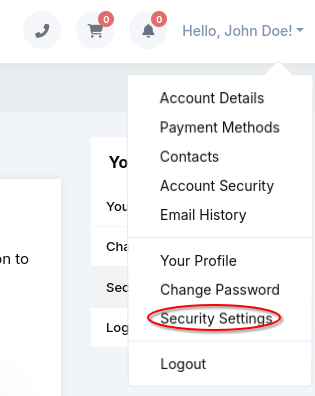
- Log in to your client portal, click your name in the top right, then Security Settings.
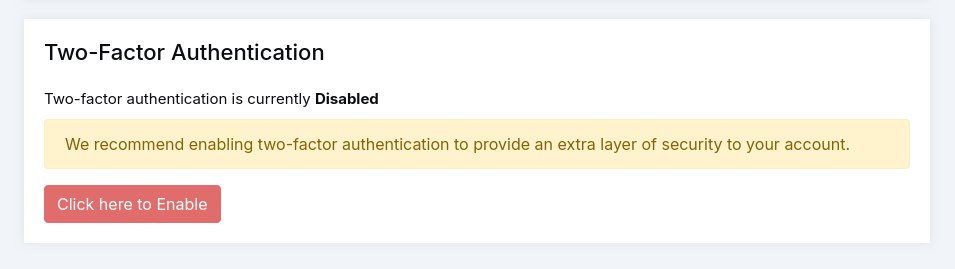
- Click Click here to Enable under Two-Factor Authentication.
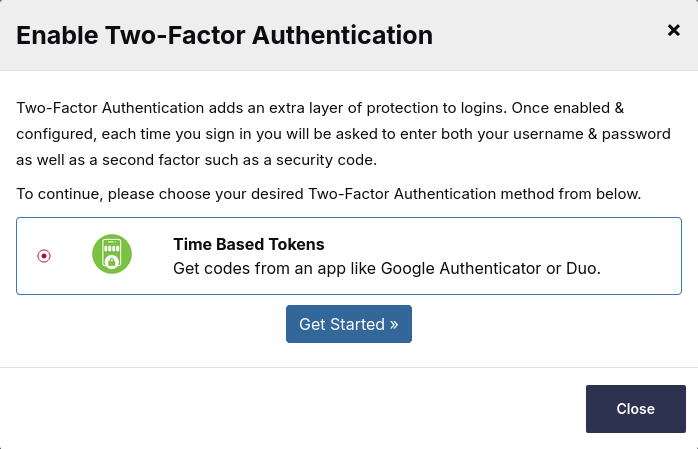
- Choose Time Based Tokens and click Get Started.
- Open your authenticator app and scan the QR code shown on screen. If scanning will not work, the screen also shows a code you can type into the app by hand. We have redacted our QR code and manual code for this demonstration.
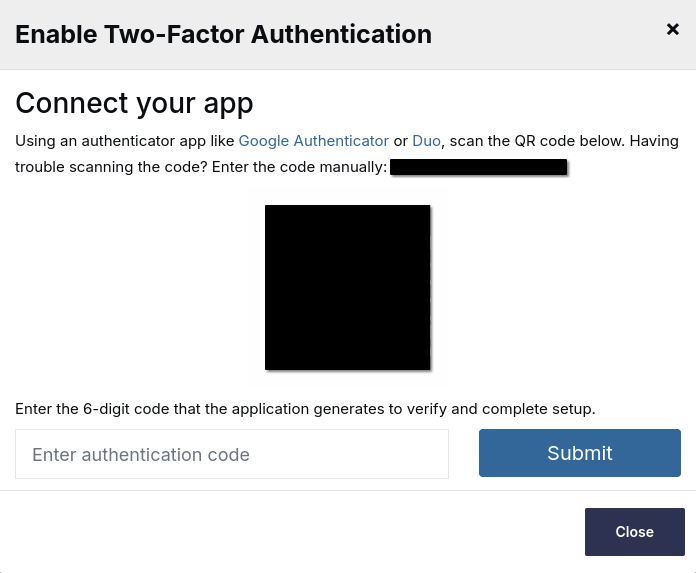
- Enter the six-digit code your app now displays, to confirm it is working.
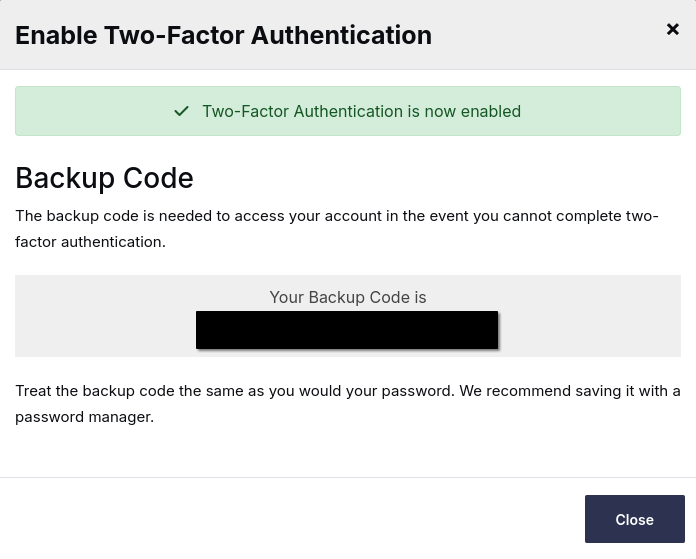
- Save the backup code you are shown. This step matters more than the rest, and the next section explains why.
The backup code: do not skip this
At the end of setup you are shown a backup code of sixteen letters and numbers. It is shown once. It is your way back in if your phone is lost, stolen, replaced, or simply flat at the wrong moment.
Store it somewhere that is not your phone. A password manager entry alongside your portal login is the best home for it. Written down and kept somewhere safe is fine too. A screenshot on the same phone that holds your authenticator app does not work, because losing the phone then loses both halves at once.
If you cannot log in
- Phone unavailable, backup code saved: on the two-factor prompt, use the option to log in with your backup code instead. Once you are in, set 2FA up again on your new device.
- Both unavailable: open a support ticket or contact us on WhatsApp at +27 72 270 9321. We can disable two-factor authentication on your account, but only after verifying your identity properly, as set out in our article on updating your account and contact details. Expect us to be strict about this: a provider who disables 2FA on request without proper verification has made the feature worthless.
- The code is rejected even though it looks right: this is almost always your phone's clock. Time-based codes depend on your device's time matching ours, so set your phone's date and time to automatic and try again.
If you sign in with Google
You can also sign in to your client portal using your Google account. Signing in with Google does not replace two-factor authentication on your portal account. Once 2FA is set up, you will be asked for your authenticator code after Google signs you in, the same as with a password login.
Set up 2FA on your portal account using the steps above, and switch on 2-Step Verification in your Google account as well. If your Google account is unprotected, anyone who gets into it can reach everything connected to it, including your email.
Good To Know
- Your client portal is not your only login. Two-factor authentication here protects your account with us. It does not protect your email, your cPanel or your website's admin login, all of which are separate, as our article on understanding your logins explains. Your email deserves the same treatment, and probably sooner, since your email address is the reset mechanism for almost everything else you own. The authenticator app you install for us will happily hold your other accounts too.
- Every user sets up their own. If your bookkeeper, developer or business partner has their own login to your account, they set up 2FA on their own phone.
- We will never ask for your code. Linuxweb will never ask for a two-factor code by email, phone, WhatsApp or ticket. Anyone who asks is not us.
